> ## Documentation Index
> Fetch the complete documentation index at: https://docs.bluprynt.com/llms.txt
> Use this file to discover all available pages before exploring further.
# Set up your organization
> Create an organization in Bluprynt Passport, complete KYB and invite members.
KYI is issued to an organization, not to a person. Create one before you verify any asset.
Go to [app.bluprynt.com](https://app.bluprynt.com) and sign in, or choose **Sign Up** to create a login.
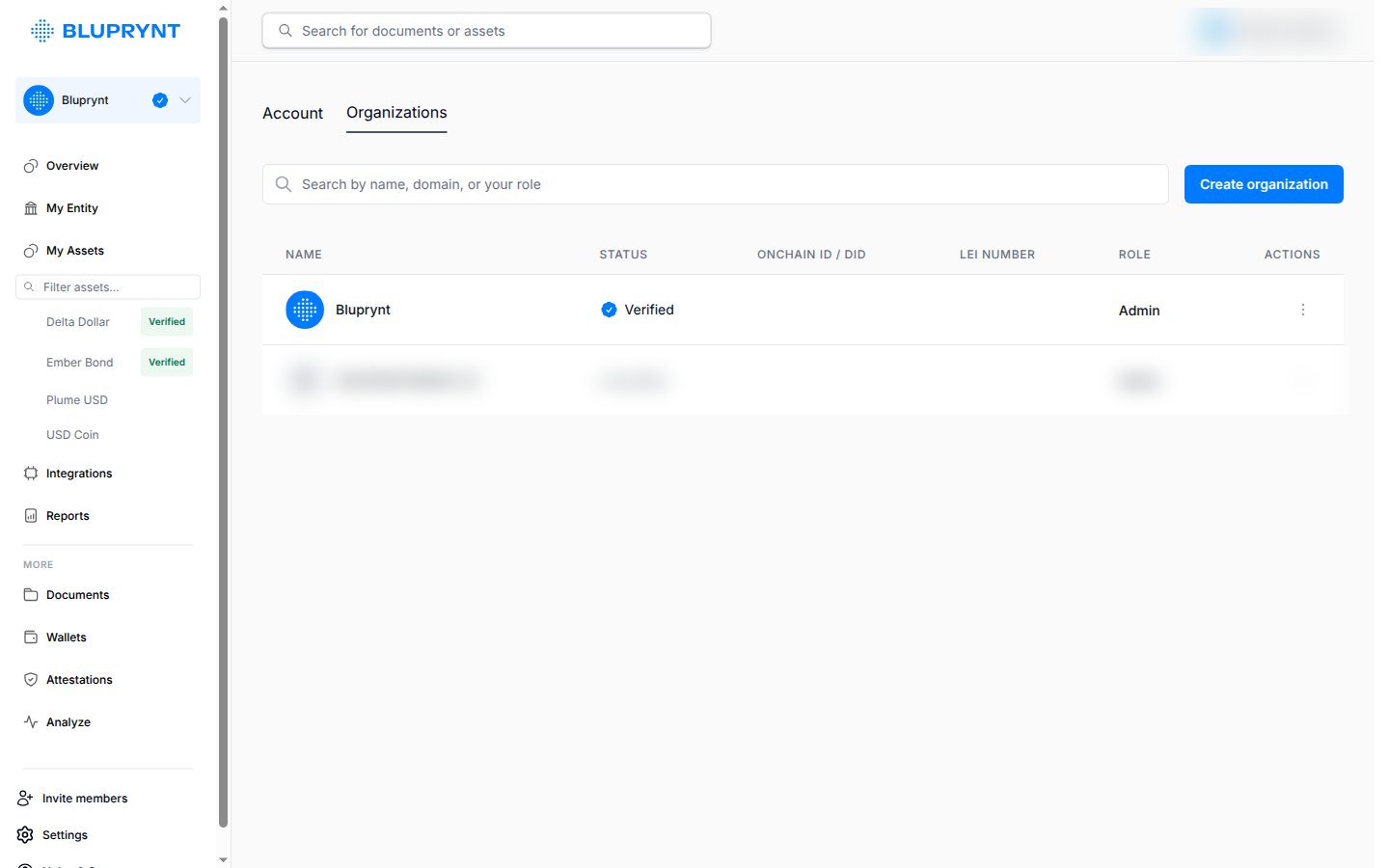
Open **Settings** → **Organizations** and click **Create organization**. One login can belong to several organizations, each with its own role.
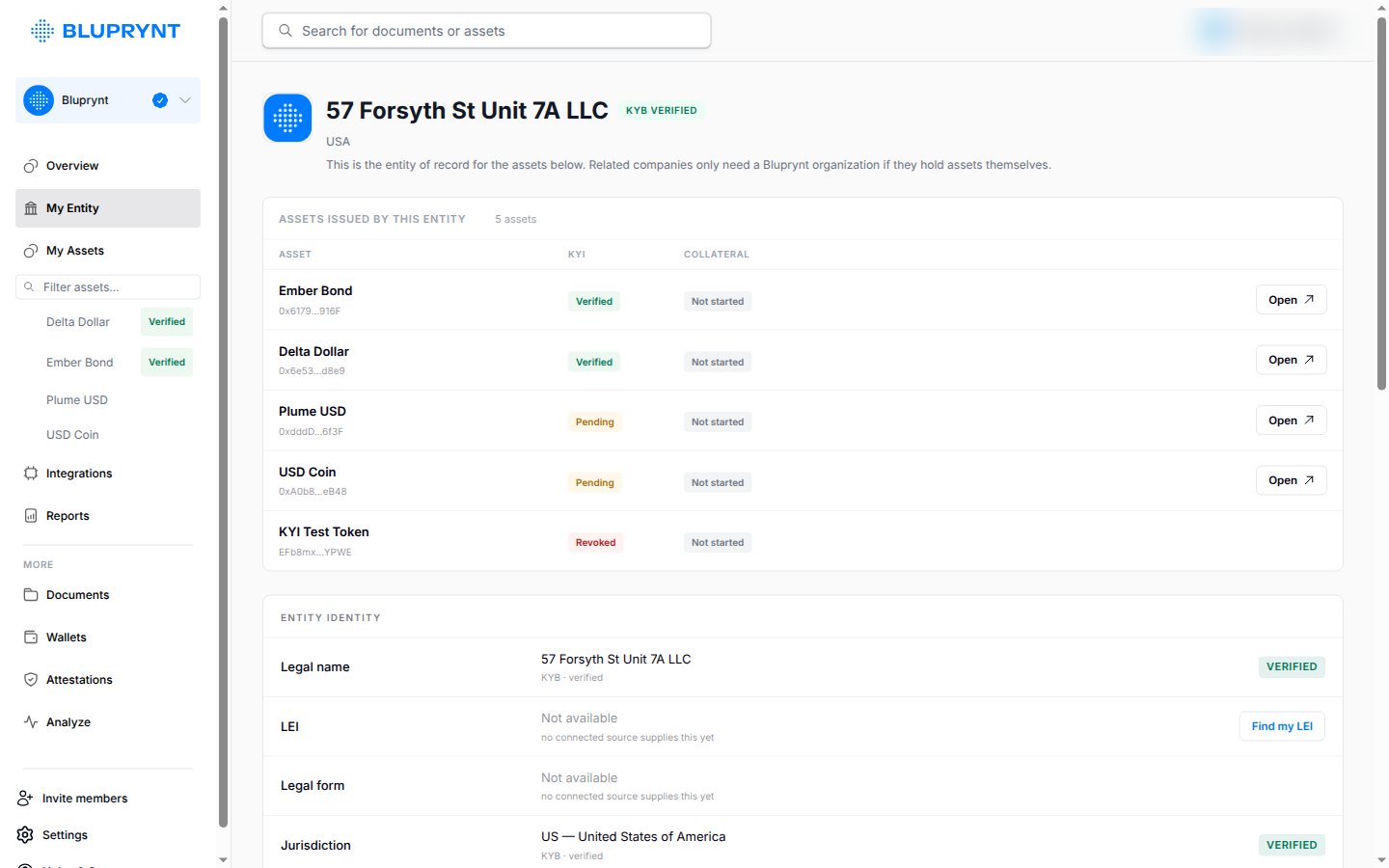
 Provide your legal entity details. When the check passes, the overview shows **Entity verified · KYB** and **My Entity** shows the entity of record.
 Click **Invite members** at the bottom of the sidebar, then enter each person's email and role.
Related companies only need their own organization if they hold assets themselves.
This documentation is built and hosted on [Mintlify](https://mintlify.com), a developer documentation platform.
Click **Invite members** at the bottom of the sidebar, then enter each person's email and role.
Related companies only need their own organization if they hold assets themselves.
This documentation is built and hosted on [Mintlify](https://mintlify.com), a developer documentation platform.