Most of Compliance Explorer is open to anyone. Some views need a free account, and the deepest evidence needs Explorer Pro. This page lists what each level sees, how to tell how current a value is, and how to trace any value back to its source.

Key concepts

Access levels

You upgrade to Pro from your account page after you create a free account.

Reach a gated view

1

Open a Pro view

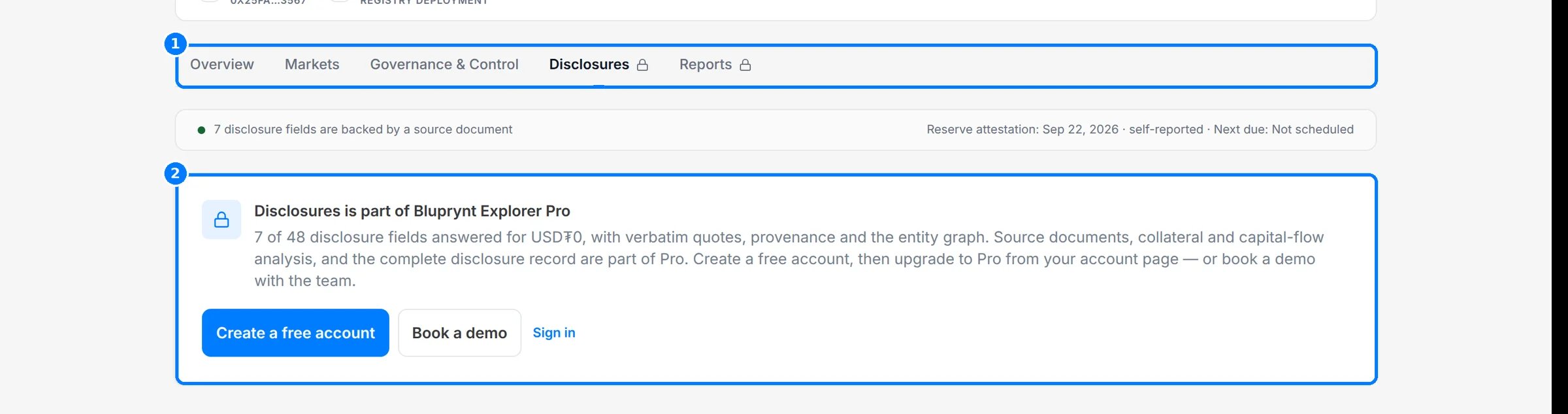
Click Disclosures on any asset, issuer or protocol page. The lock on the tab (1) marks it as gated. The gate (2) says the view is part of Explorer Pro and offers Create a free account, Book a demo and Sign in.
The Disclosures tab with a lock icon and the Explorer Pro gate.

The Explorer Pro gate on the Disclosures tab.

2

Open a sign-in view

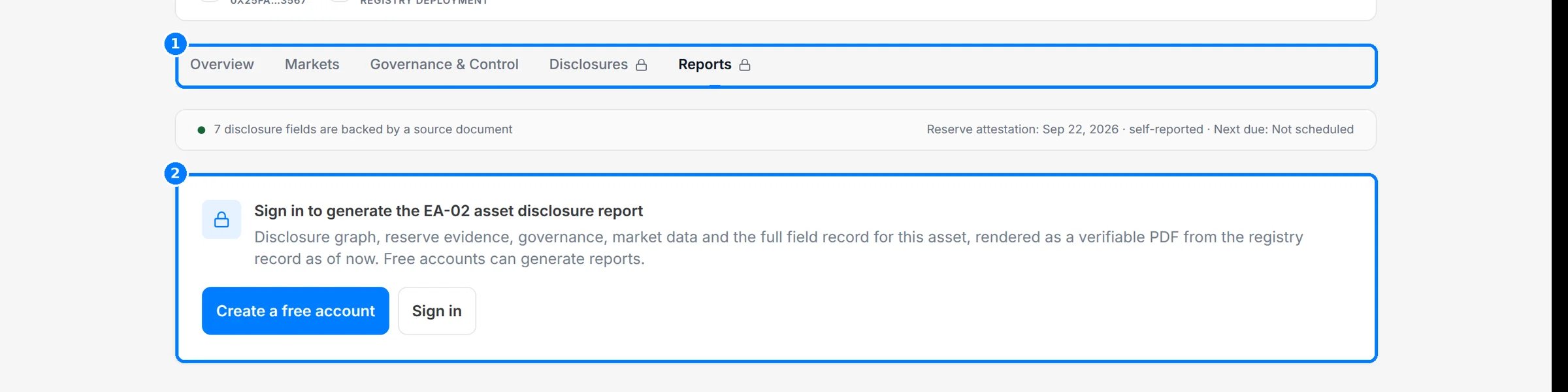
Click Reports. As an anonymous visitor you see a sign-in card (2). Any free account can generate reports.
The Reports tab with a card asking you to sign in to generate the EA-02 asset disclosure report.

The sign-in card on the Reports tab.

Freshness

Every page says how current its data is. Look for these markers.

Provenance

Each value keeps where it came from.

Worked example: trace a control fact

  1. Open an asset and click Governance & Control.
  2. Under Smart contract & operational integrity, find Who can control the token.
  3. Read the Basis for the reasoning and the Confidence score.
  4. Click the Source link to read the original page yourself.
  5. Back on Overview, read Last checked to see when that source was last re-read.

Troubleshooting

The asset page

Every field and its evidence.

Disclosure Monitoring

Get told when a source changes.