Read an asset record tab by tab: what each field means and where its evidence comes from.
The asset page is the core of Compliance Explorer. It shows one tokenized asset: who issues it, where it trades, which chains it is deployed on, who controls it, what it discloses and what backs it. Every value carries its source, so you can check it yourself before you rely on it.
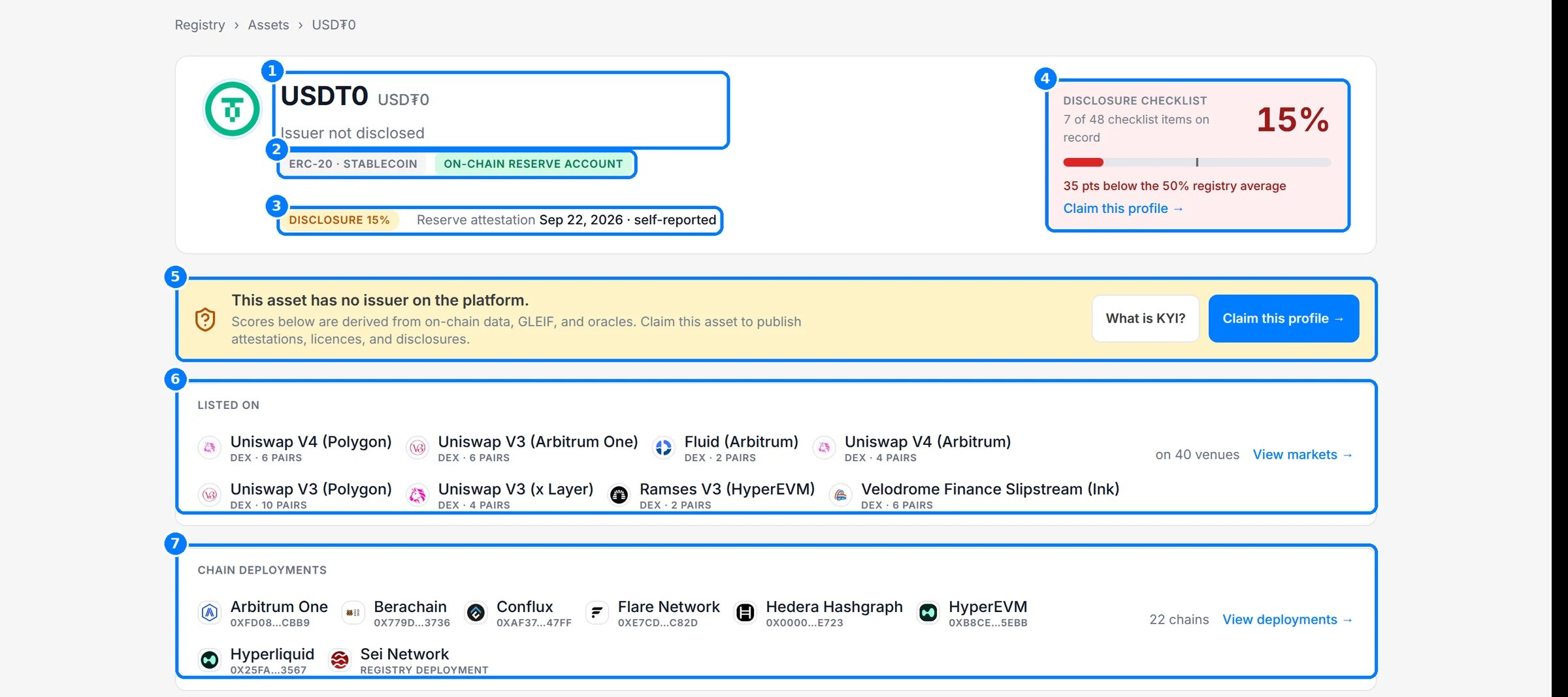
Open an asset from search or the assets directory. The title line (1) shows the token name, ticker and issuer, or Issuer not disclosed when no issuer is linked. The tags (2) show the token standard and classification, plus On-chain reserve account where one is mapped. The pill and line under them (3) show the disclosure score and the latest reserve attestation. The checklist card (4) shows how many of the 48 items are on record and how that compares with the registry average. When no issuer is on the platform, the claim banner (5) says so and links to Claim this profile. See Claim this profile for the full flow. Listed on (6) shows the venues that trade the asset and Chain deployments (7) every chain it is deployed on.
The asset hero for USDT0.
2
Read the Overview tab
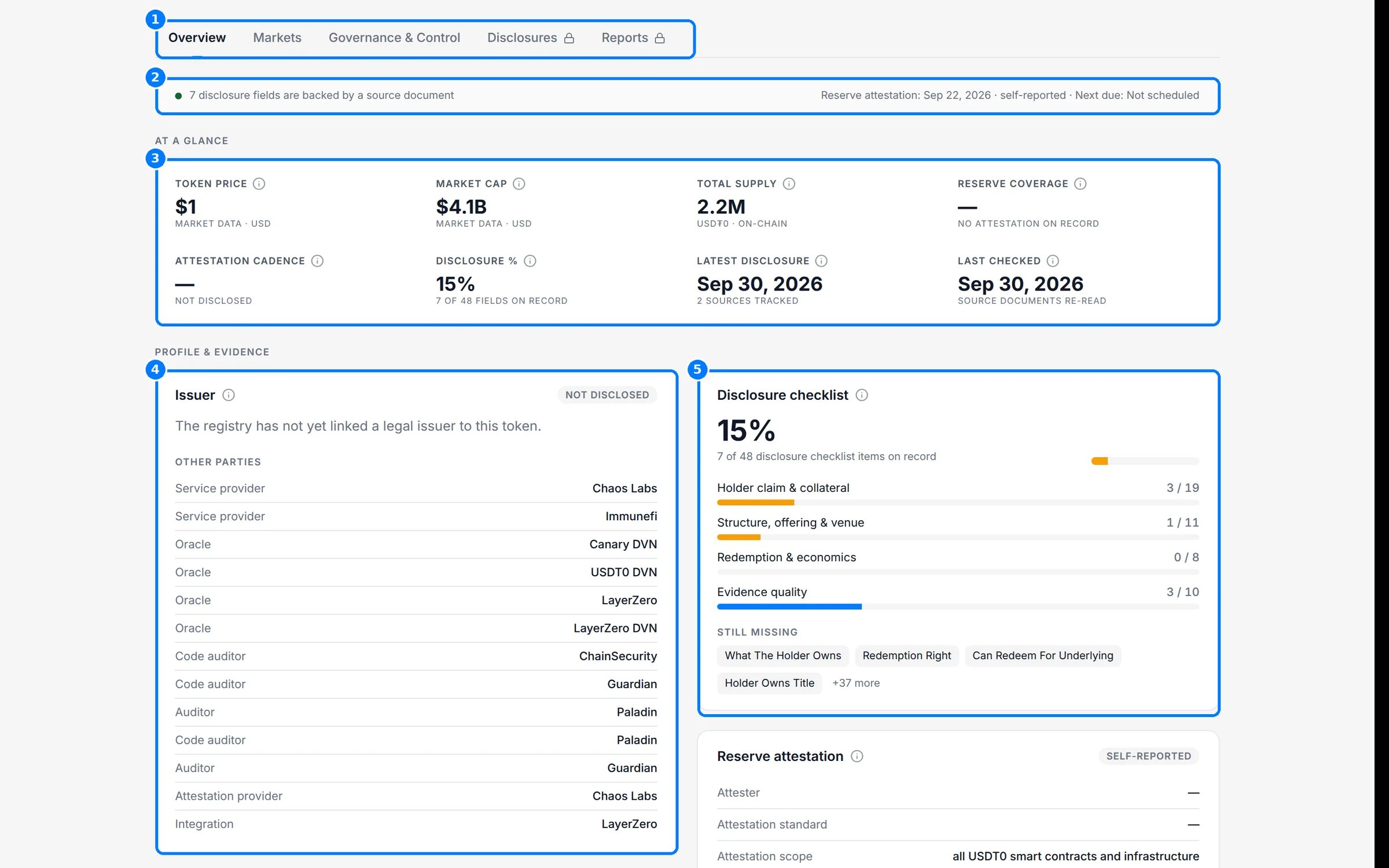
Use the tabs (1) to move between views. The evidence strip (2) counts the disclosure fields backed by a source document and shows the latest reserve attestation and when the next one is due. At a glance (3) summarizes price, market cap, total supply, reserve coverage, attestation cadence, disclosure score, latest disclosure and when the record was last checked. Each tile names its source underneath, such as Market data · USD or On-chain. Issuer (4) shows the issuing entity and its regulatory claims, then Other parties named in the asset’s documents. Disclosure checklist (5) shows coverage by family.
The Overview tab: evidence strip, at a glance, issuer and checklist.
3
Check the evidence
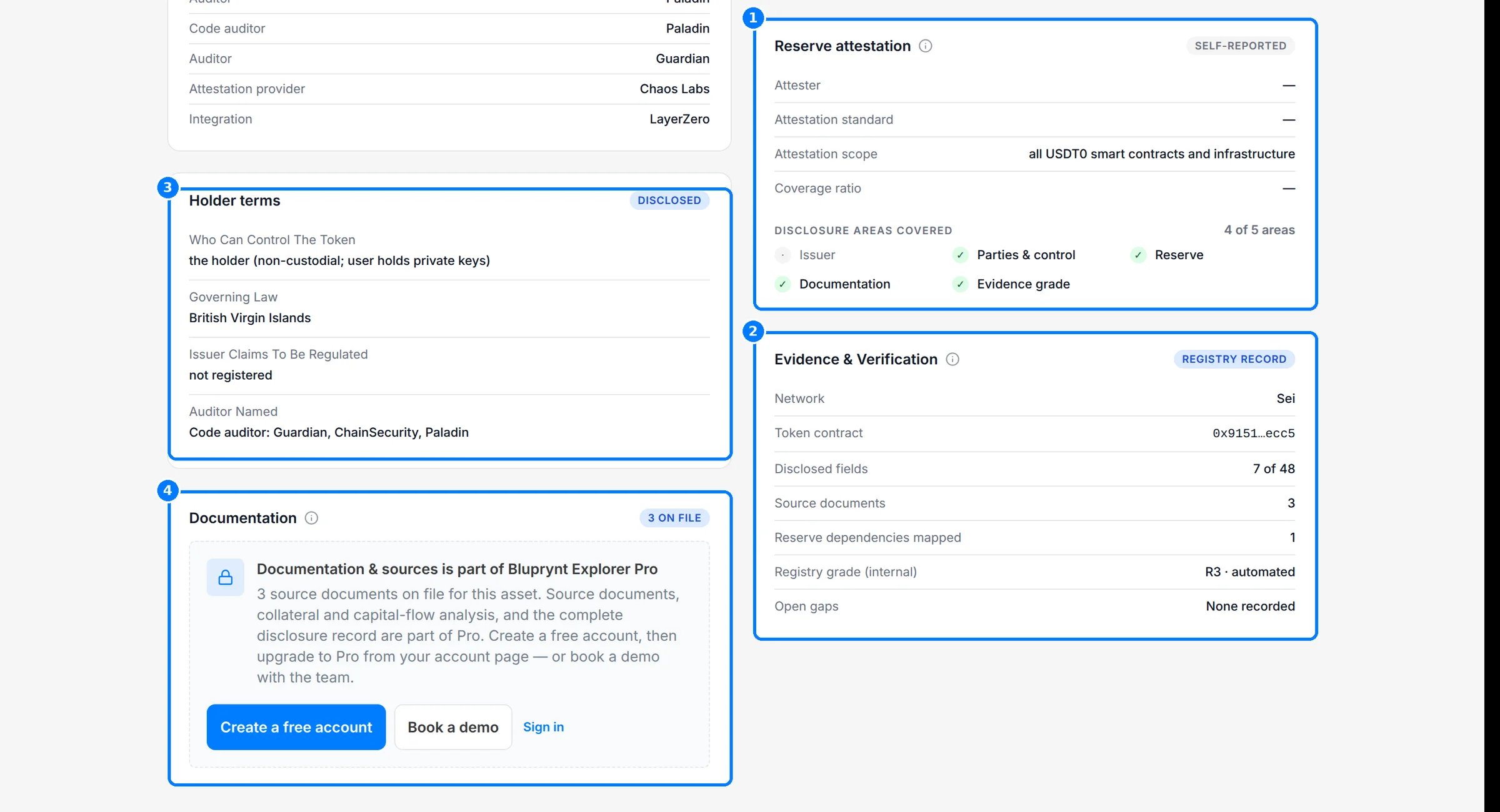
Further down, Reserve attestation (1) names the attester, standard, scope and coverage ratio, and Disclosure areas covered shows which of five areas (issuer, parties and control, reserve, documentation, evidence grade) have evidence. Evidence & Verification (2) lists the network, token contract, disclosed fields, source documents, reserve dependencies mapped, registry grade and open gaps. Holder terms (3) shows what the documents say about who can control the token, governing law, regulatory claims and named auditors. Documentation (4) counts the source documents on file; the documents themselves open with Explorer Pro.
Reserve attestation, evidence and holder terms on the Overview tab.
4
Read the Markets tab
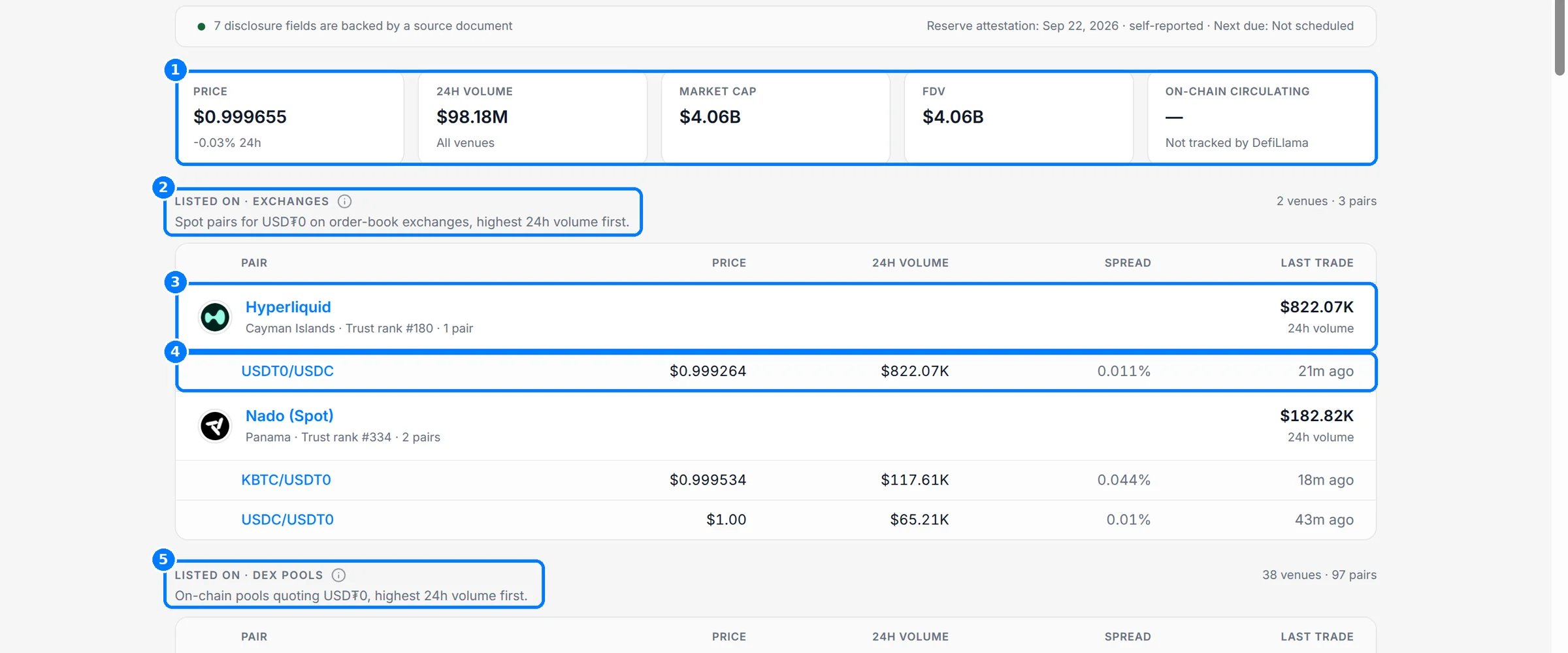
Click Markets. The tiles (1) show price, 24-hour volume across all venues, market cap, fully diluted value and on-chain circulating supply. Listed on · exchanges (2) lists order-book venues by 24-hour volume. Each venue row (3) shows its country, trust rank and pair count, and each pair row (4) shows price, 24-hour volume, spread and last trade. Listed on · DEX pools (5) lists on-chain pools the same way. Deployed on, further down, lists each chain with its contract, decimals and share of circulating supply.
The Markets tab: market tiles, exchange venues and DEX pools.
5
Read the Governance & Control tab
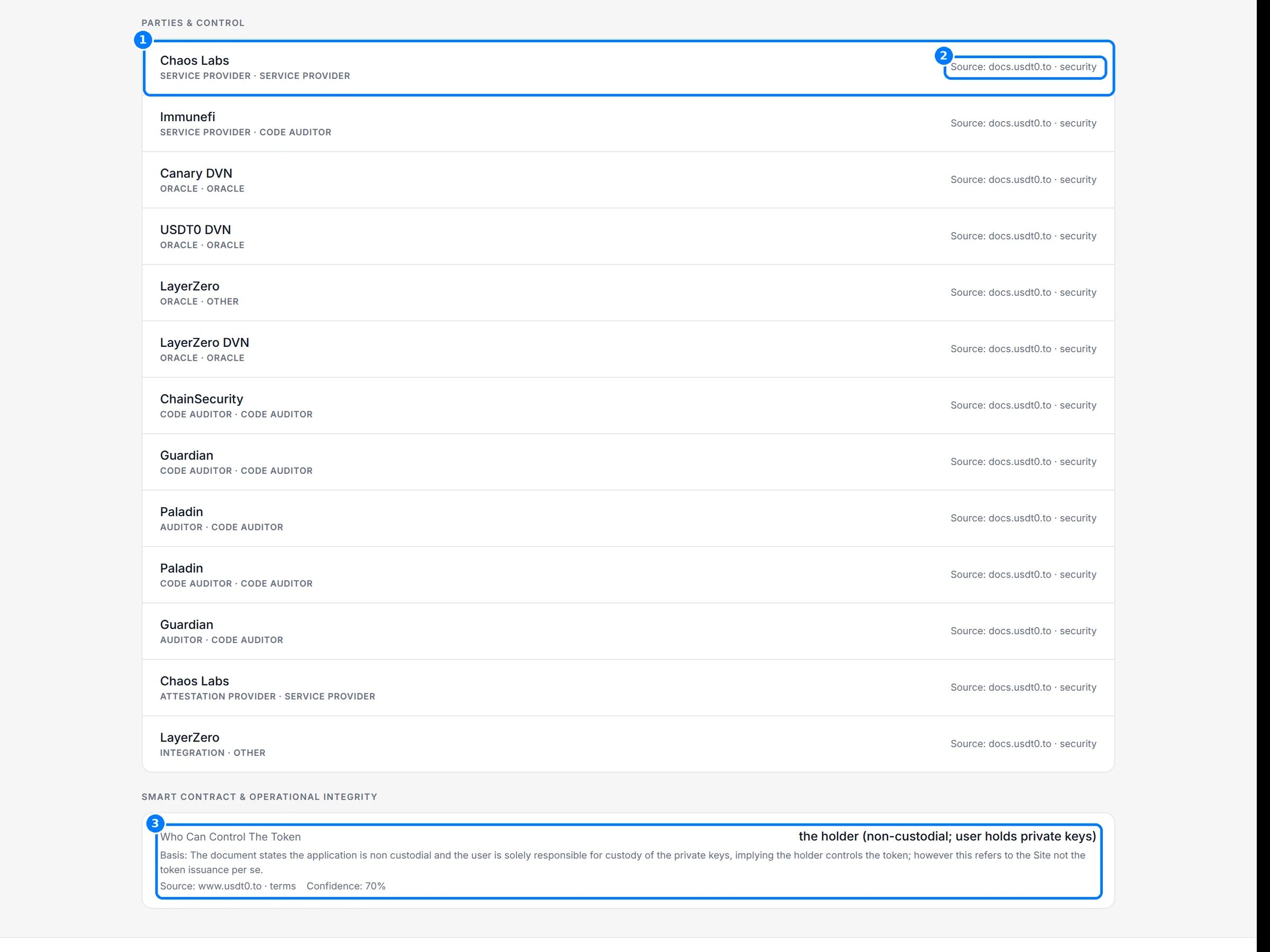
Click Governance & Control. Parties & control lists every party named for the asset (1). Each party shows its roles, such as service provider, oracle or code auditor, and the source page it was read from (2). Smart contract & operational integrity (3) lists control facts, such as who can control the token. Each fact shows its Basis (why the registry reads the source that way), its Source and a Confidence percentage.
The Governance & Control tab.
6
Open the Disclosures tab
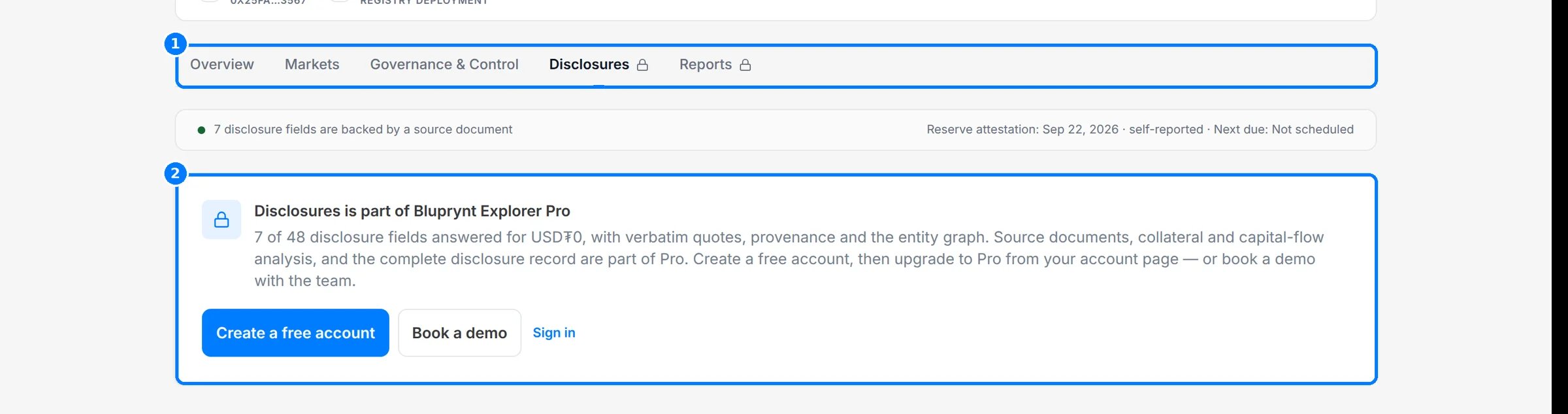
Click Disclosures. A lock on the tab (1) means it needs Explorer Pro. Without Pro you see the upgrade card (2). With Pro the tab has three views: Checklist with key facts, the checklist by family and reserve evidence; Changes, the timeline of disclosure changes; and Entities, every legal entity the asset’s documents and registers name.
The Disclosures tab as a visitor without Explorer Pro.
7
Open the Reports tab
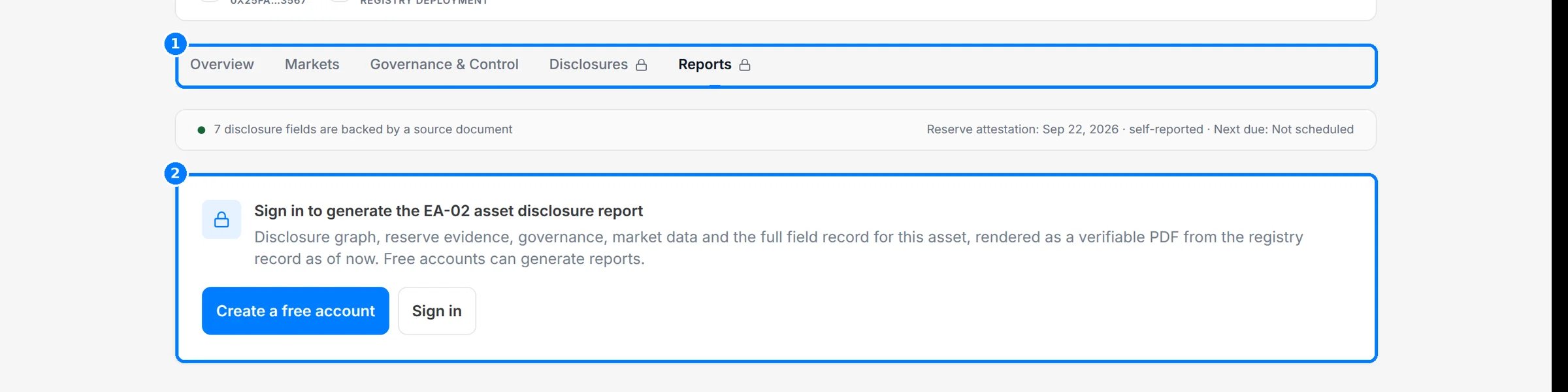
Click Reports. If you aren’t signed in, the tab (1) shows a sign-in card (2). Once you sign in with any account, click Generate PDF to render the EA-02 asset disclosure report from the record as it stands now.
The Reports tab before sign-in.
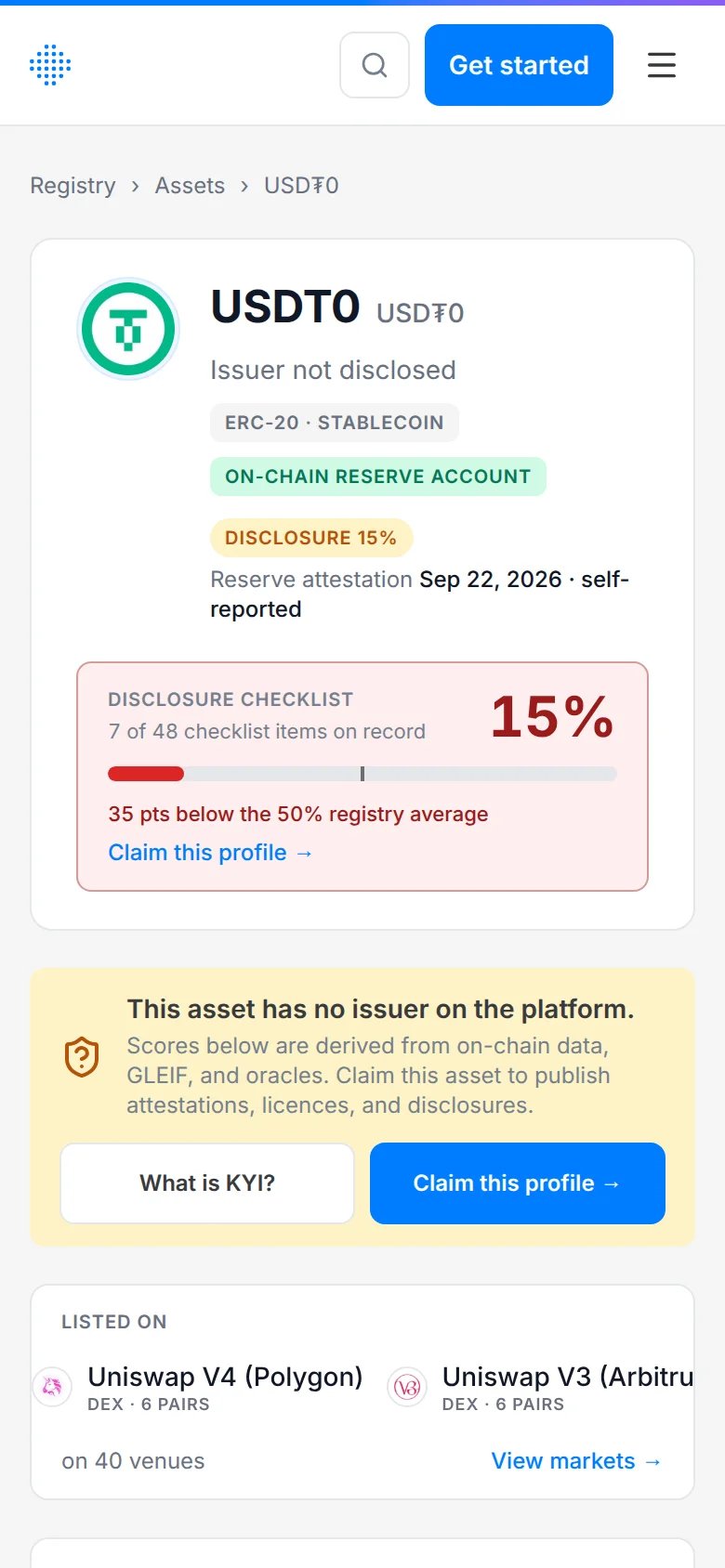
On a phone, the hero, tabs and cards stack into one column.
Pair, Price, 24h volume, Spread, Last trade. Venues show country, trust rank and pair count.
Listed on · DEX pools
Pair, Price, 24h volume, Spread, Last trade, by pool venue
Deployed on
Network, Contract, Decimals, Circulating · share
Primary liquidity pool (registry snapshot, not live)
Pool, DEX, Pool TVL, Pool 24h volume, Fee tier, ±2% depth
Venue trust is shown as High trust, Medium trust or Low trust. When the market data feed doesn’t respond, the tab says Live market data unavailable and the rest of the record is unaffected.