How the disclosure checklist is scored, what each status tag means, what ‘Not disclosed’ tells you, and where Claim this profile leads.
Every record in Compliance Explorer carries a disclosure checklist and a set of status tags. The checklist shows how much of a fixed list of facts is on record. The tags show the subject’s verification and screening state at a glance. Read them together before you decide how much weight to put on a record.
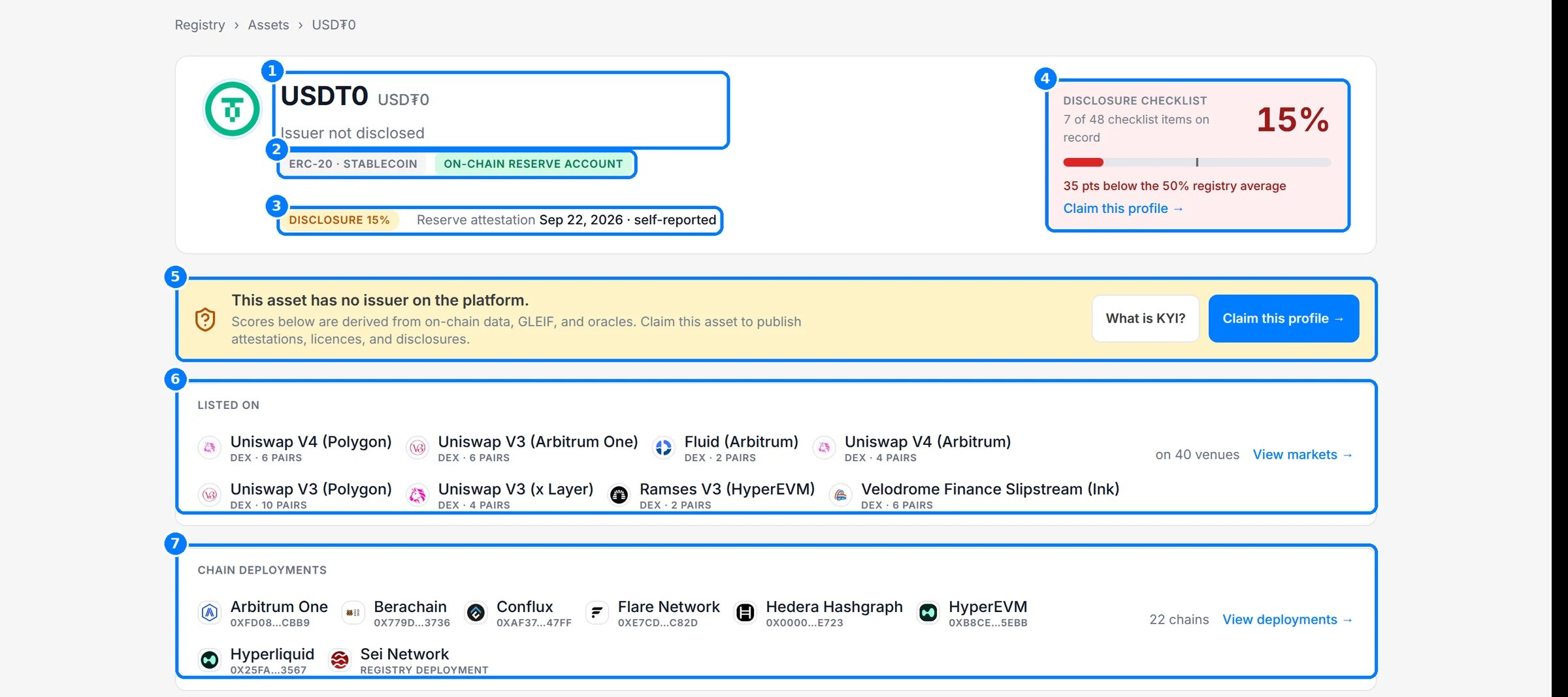
On an asset page, the checklist card (4) shows the score, items on record out of 48, and how far the asset is from the registry average. The tags (2) and the title line (1) show the classification and issuer state.
The disclosure checklist card and status tags in the asset hero.
2
Read the checklist by family
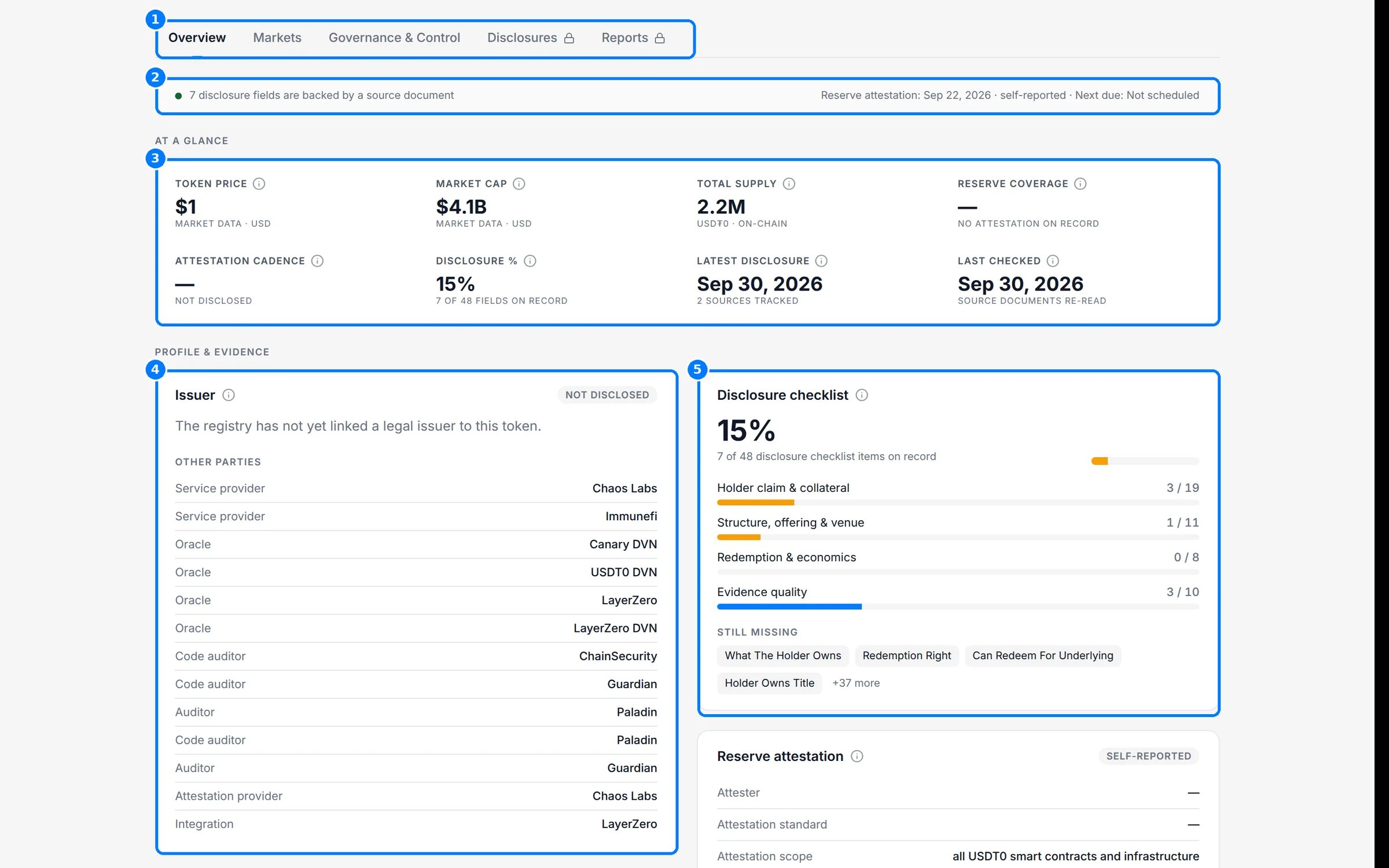
On Overview, the Disclosure checklist card (5) breaks the score into families and lists what is Still missing. Each value that is on record has a Source: link on the tab where it appears.
The disclosure checklist on the Overview tab.
3
Read item states on an issuer
On an issuer page, the checklist (7) shows each weighted item with its state: Self-reported, Not disclosed, Awaiting issuer or a count on record. The compliance profile (5) shows field states for sanctions, KYI, enforcement, licensing, filings and wallet provenance.
Item states on an issuer's checklist and compliance profile.
4
Claim the profile
If you are the issuer, click Claim this profile (1). It appears on the checklist card, the claim banner and directory rows. The claim panel opens on the page (2) and shows the three stages (3): Create your issuer account, Verify a control wallet and Continue in Bluprynt Passport. What is KYI? explains the verification first. The full flow is in Claim this profile.
The hero says the asset is 35 points below the registry average.
The title line reads Issuer not disclosed and the claim banner says no issuer is on the platform.
On Overview, the checklist lists what is still missing, such as redemption terms.
The evidence strip says the 7 items on record are each backed by a source document.
You can rely on those 7 facts and their sources. Everything else is unknown, not negative. Ask the issuer for the missing items, or watch the asset with Disclosure Monitoring to see when they appear.